

Colorize Icons for UI Themes
By Axialis Team
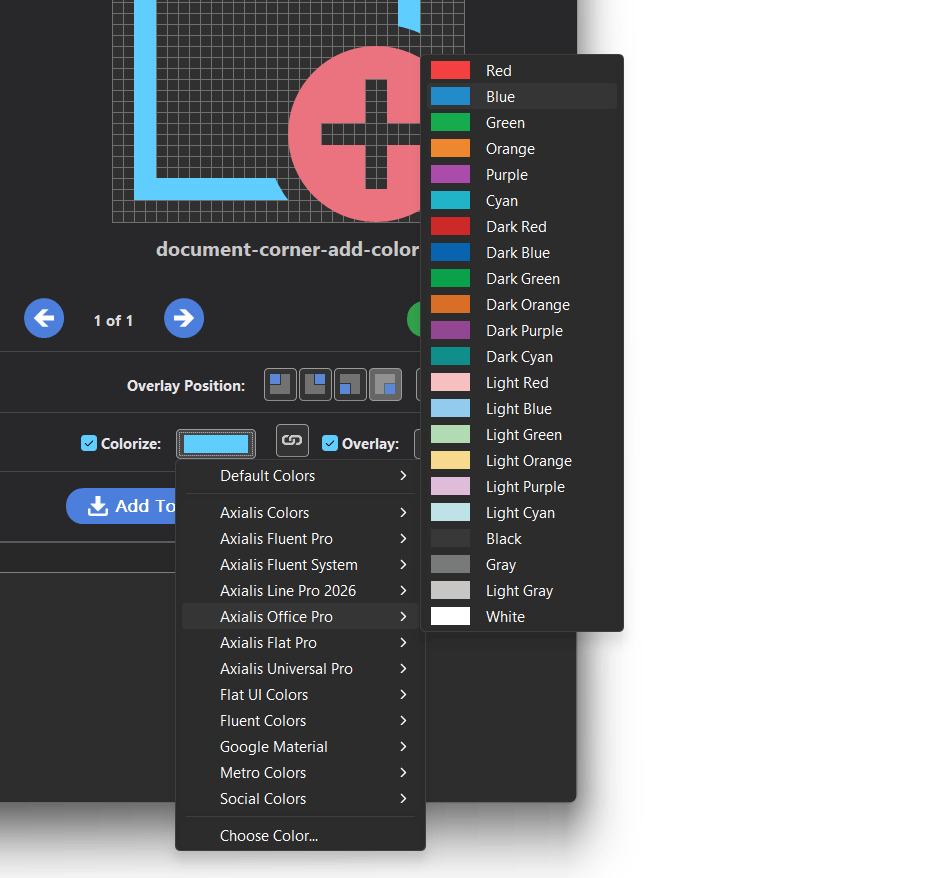
Colorization helps align icon output with product branding, component states, and light/dark UI surfaces. IconGenerator supports palette-based colorization in preview and export workflows.
Step 1 - Enable Colorize in Generated Icons
- Select icons and optional overlays.
- Enable Colorize in the Generated Icons panel.
- Open the color swatch and choose a palette color.
Step 2 - Set overlay color policy
- Keep link enabled for single-color icon+overlay output.
- Disable link for separate overlay color (useful for status signals).
Step 3 - Use palette strategy
- Use Axialis family palettes for style-consistent outputs.
- Use Metro/Fluent/Material palettes for UI-system alignment.
- Create custom AXPAL palettes when product branding requires it.
Step 4 - Apply colorization during export
In the export dialog, the Icon Colors section lets you force icon colorization, separate overlay colors, and optionally combine this with dark mode generation.
Palette management tips
- AXPAL files are stored in your user profile color palette directory.
- AXPAL files are XML text and can be edited manually.
- IconGenerator can also load Adobe ACO palette files.