

Configure Preferences for Team Workflows
By Axialis Team
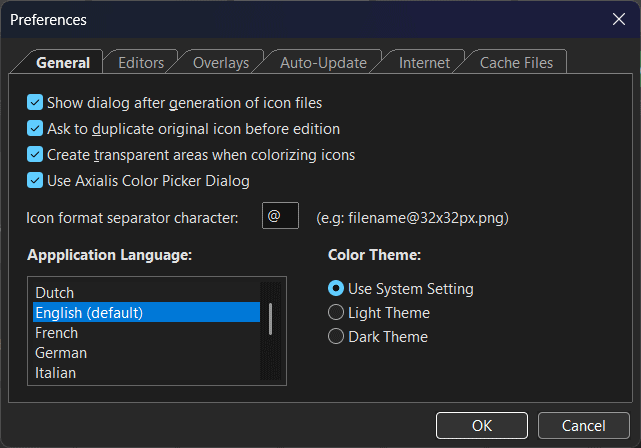
Before producing assets at scale, align preferences across your team. This avoids export differences, editor mismatches, and update or connectivity issues.
Step 1 - Open Preferences
Use Edit -> Preferences... or press F2.
Step 2 - Configure General options
- Set Application language for your team environment.
- Set Color theme (System, Light, or Dark).
- Choose whether to use the Axialis Color Picker or the system picker.
- Keep transparent areas enabled when colorizing if your icons must work on non-white backgrounds.
Theme and language changes may require an application restart.
Step 3 - Set your default SVG editor
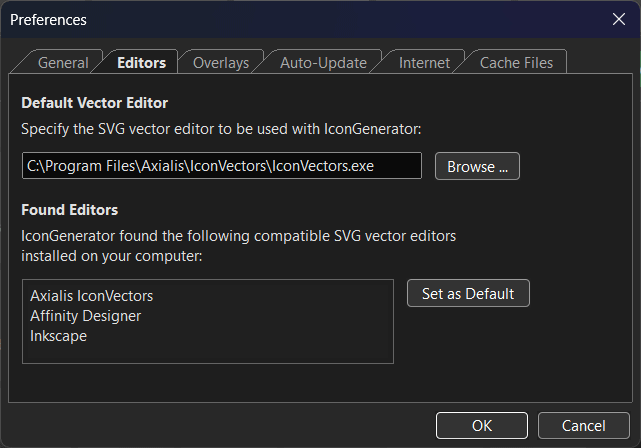
- Open the Editors tab.
- Select a detected editor and click Set as Default, or use Browse....
- This controls which editor launches from
Edit -> Edit Icon.
Step 4 - Pick overlay clipping behavior
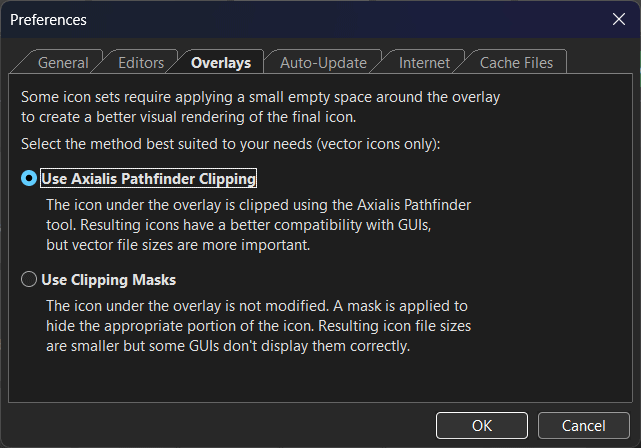
- Axialis Pathfinder Clipping: better compatibility with many UI frameworks.
- Clipping Masks: can generate smaller vectors, but some frameworks may render masks differently.
Step 5 - Configure updates and connectivity
- In Auto-Update, enable automatic application updates and icon-set updates when possible.
- In Internet, configure proxy credentials if your network requires authentication.
- In Cache Files, keep thumbnail cache enabled for faster browsing and set an appropriate disk allocation.