

Edit Icons with an External SVG Editor
By Axialis Team
IconGenerator edits copies of icons using external SVG editors. This keeps source database icons unchanged while letting you build project-specific variants.
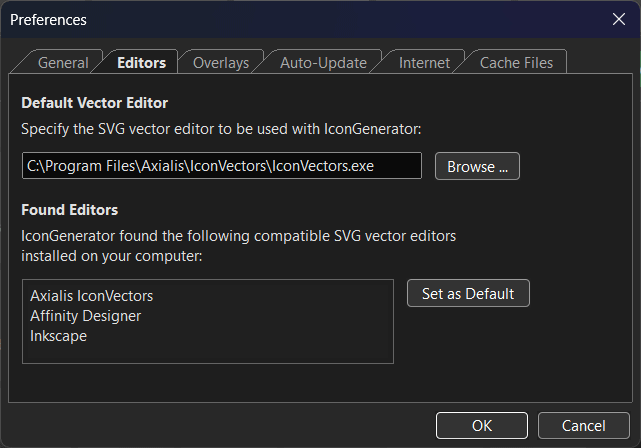
Step 1 - Configure default editor
- Open Edit -> Preferences (F2).
- Go to Editors tab.
- Select a detected editor or browse to one manually.
Step 2 - Duplicate for editing
- Use Edit -> Duplicate For Edition (Ctrl+D) when you want safe variants.
- IconGenerator can prompt before duplicating originals based on preferences.
Step 3 - Launch editor workflow
- Use Edit -> Edit Icon for default editor.
- Use Edit -> Edit Icon With for a specific editor instance.
Step 4 - Save and return
After editing SVG files, save changes and return to IconGenerator. Reselect the icon if the preview does not refresh immediately.
Important behavior for dual-size sets
For sets with small/large native sizes, IconGenerator can create and open two SVG documents. Keep both versions in sync for consistent UI outputs.
Where edited files are stored
Documentation states edited icons are stored in user documents under the Icons folder. Move this folder with AXICP files when migrating to another machine.