

Find Icons Faster with Family Search
By Axialis Team
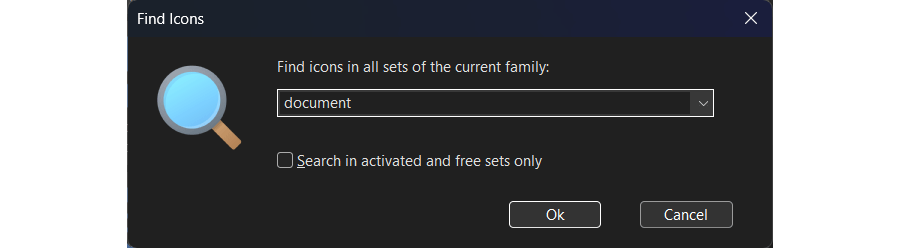
When you already know the concept you need (for example document, warning, or calendar), search is faster than manually opening categories. IconGenerator search is scoped to the current family, so you can stay focused and still search across all sets in that family.
Step 1 - Open the Find dialog
- Use
Edit -> Find(Ctrl+F), or click the Find toolbar button. - Enter one or more keywords.
Step 2 - Keep search scope under control
- Search runs across all sets in the currently selected family.
- Switch family first if you want a different style or icon ecosystem.
- Enable Search in activated and free sets only to reduce noise and stay inside currently usable sets.
Step 3 - Refine terms for better results
- Start with a simple noun:
folder,mail,user. - Add a second term to narrow:
folder add,mail warning. - Try synonyms when needed:
trash/delete/remove.
Step 4 - Locate the original icon in its set
- Run your search and browse the Search Result folder.
- Right-click a match and choose Locate Icon in Set.
- IconGenerator opens the original set/category and selects the icon.
This is useful when you want to browse nearby variants before final export.
Step 5 - Generate directly from results
You can work from search results exactly like normal icon lists:
- select icons,
- add overlays,
- colorize icons and overlays,
- generate files, or add to collections.