

Synchronize and Manage Icon Set Licenses
By Axialis Team
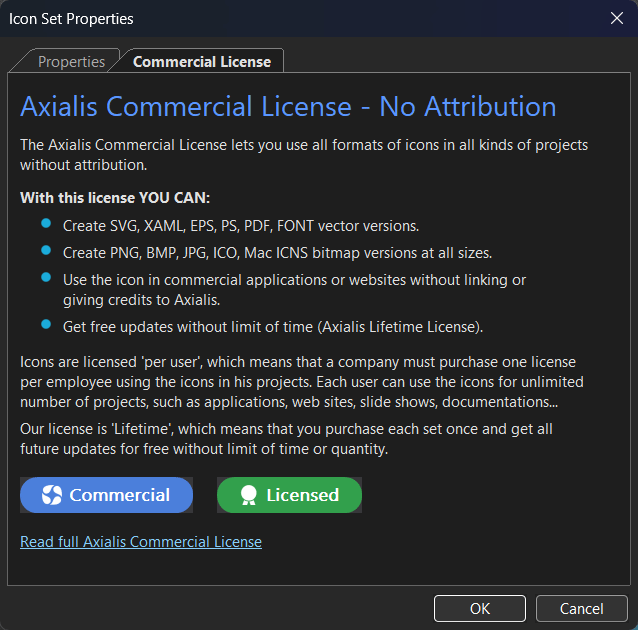
IconGenerator is free to use, but individual icon sets can have different license terms. This workflow helps you keep activation state aligned with your account or license keys.
Step 1 - Check license information for the selected set
- Use
Licenses -> License Information.... - Or right-click an icon and choose License Information.
This is the authoritative place to confirm attribution, redistribution, and activation status for that set.
Step 2 - Sign in and synchronize licenses
- Sign in to your Axialis account in the app.
- Run
Licenses -> Synchronize Licenses. - Confirm purchased sets move from unlicensed to licensed state.
Step 3 - Activate by key when account sync is not used
Use Licenses -> Activate License (Enter Key)... and follow the activation flow.
Step 4 - Manage licenses for migration and backup
Display Activated Licenses...for local audit.Deactivate Licenses...before moving to another machine when needed.Export Licenses...andImport Licenses...for backup or restricted/offline workflows.
Step 5 - Fix common sync issues
- Verify your sign-in state (toolbar account menu).
- Retry Synchronize Licenses.
- Check proxy settings in
Edit -> Preferences -> Internet.